

Use a location, area or room as a unit
A unit defines what can be reserved independently and configured with controls. It is not an extra physical level: it refers to a location, area or room.
| Your model | Physical structure | Reservable unit |
|---|---|---|
| A whole holiday house | Location Villa Aurora | Villa Aurora |
| An apartment or office floor | Location → Area A | Area A |
| A guest room or meeting room | Location → Area A → Room A101 | Room A101 |
Example 1: The entire location
You always rent Villa Aurora as a whole.
- Open the Villa Aurora location.
- Open Units, enter the name and select Entire location as the assignment.
- Check the name and confirm with Add unit.
- Open Units and check that Villa Aurora is available for reservations.
This also works for a coworking building that is only rented as a whole.
Example 2: An area within the location
At Luna Campus, Area A is booked as one office space. For holiday rentals, the same structure can represent an apartment inside a house.
- Open the location and create Area A in its physical structure.
- Choose Use as Unit for the area.
- Confirm the unit's name and physical assignment.
- Check the assignment under Units.
Example 3: A room within an area
At Luna Campus, Room A101 is reserved independently. In holiday accommodation, this might be a separately rented guest room.
- Create Area A in the location.
- Create Room A101 and select Area A as its parent.
- Continue with the offered use-as-unit flow, or choose Use as Unit for the room.
- Confirm and check the unit under Units.
A room may also belong directly to a location. Only add an area if it makes your structure clearer.
Choose the assignment explicitly
Open the Units tab in the location. Enter the Unit name and choose the entire location, an area or a room under Where is this Unit located?. Add unit saves the selection.
The following unsaved examples show these three alternatives at the same demo location, Casa Luna. They do not recommend creating all three at once. L101 already exists as a room unit there and must not be created again.
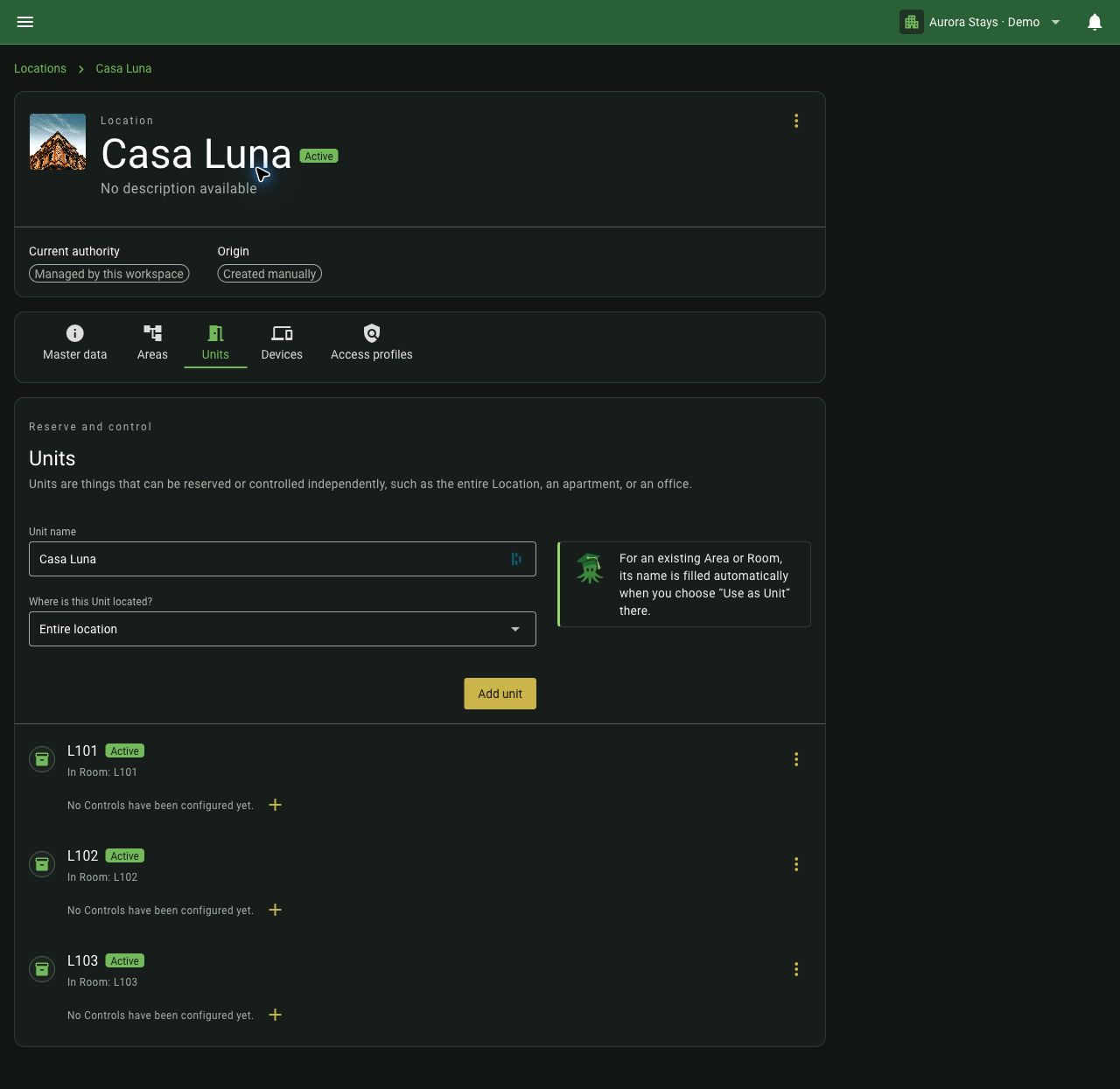
Entire location Casa Luna
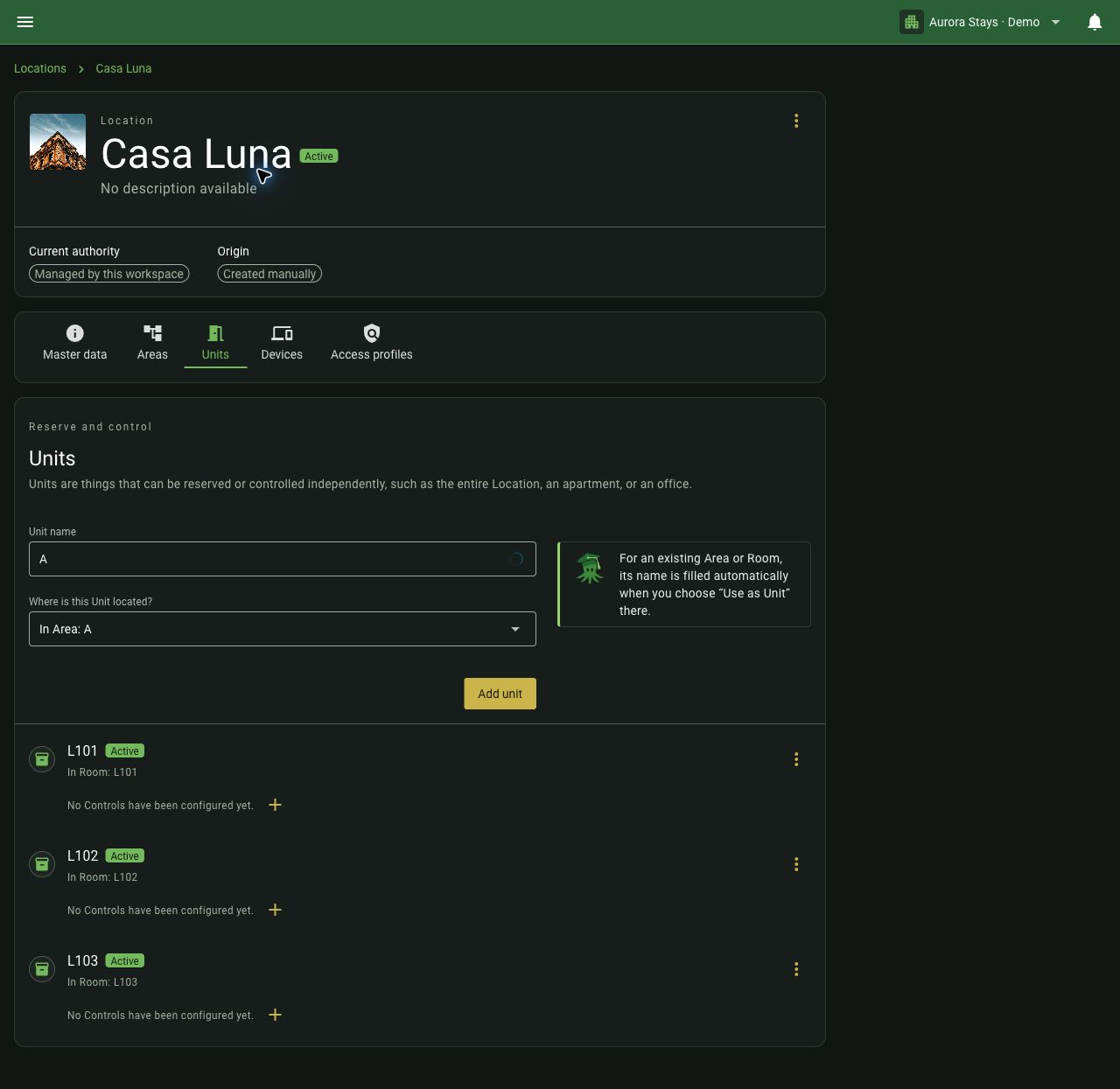
Area A in location Casa Luna
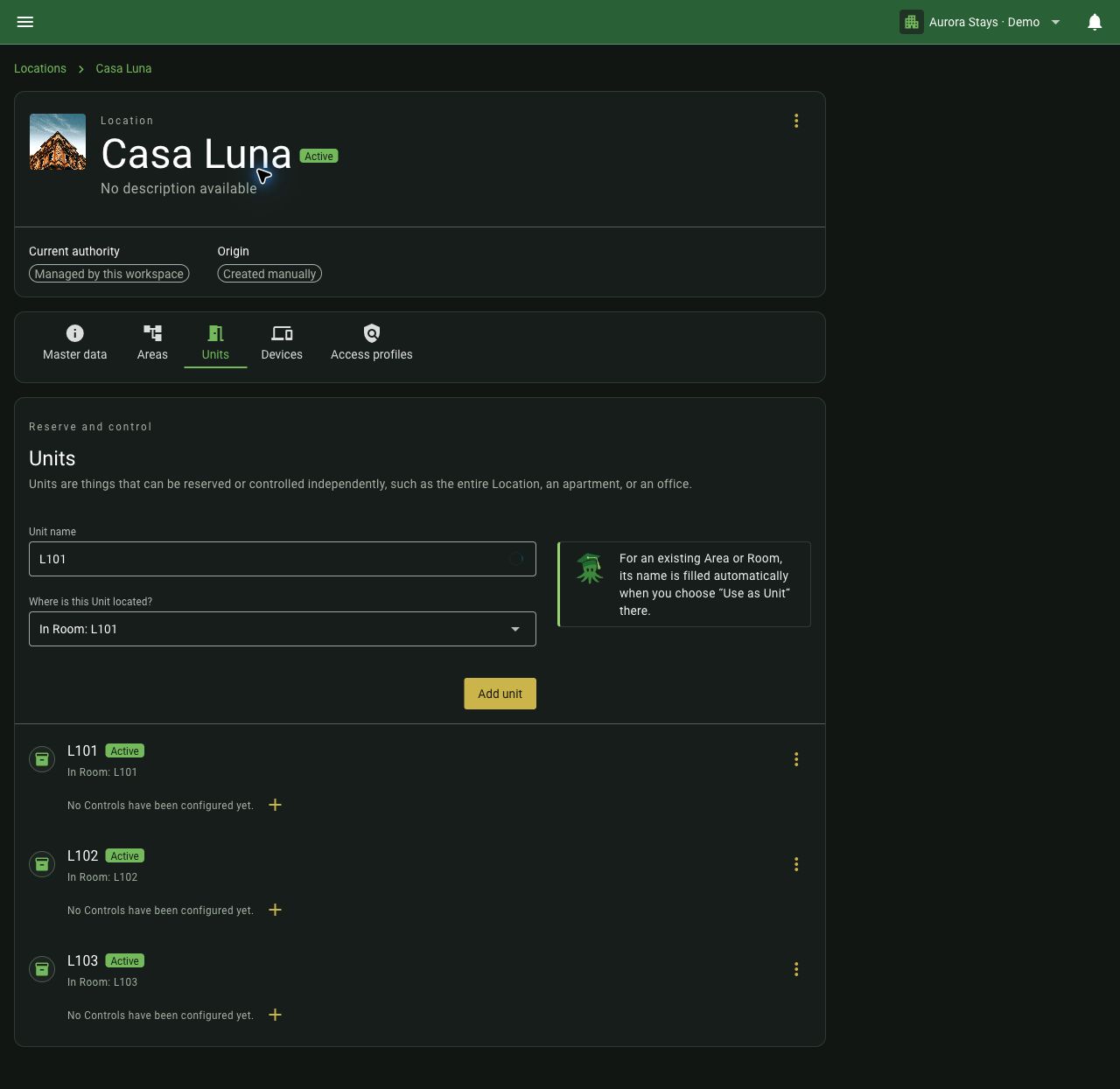
Room L101 in Area A of location Casa Luna
Docto Pancy explains
Start with the simplest structure that fits. A holiday house does not need artificial floors and rooms if you always manage it as a whole.
Existing units and booking conflicts
If the selected place already has a unit, the simple flow offers View Units to open it. Avoid creating the same bookable space twice by mistake.
Important: Availability is checked per unit. Do not create an entire building and its rooms as separate units and assume they automatically block each other's bookings. Physical nesting alone does not provide this protection.