

Create people for reservations
People represent guests, tenants or booking contacts. A person record is not a user account and does not grant workspace access.
On narrow screens, people appear as cards with their image and name at the top, followed by the email address and status. Tap a card to open the details. Search and pagination work as they do in the table. When space is limited, Add becomes a plus button beside the search. On very narrow screens, the full-width text button appears below the search.
Steps
- Open People and start creating a person.
- Enter a first and last name, such as Alex Morgan.
- Save and open the person's details.
- Add optional contact information: email, phone, company and address. Choose the country from the list.
- Check the name and contact details before creating a reservation.
You need permission to manage people and reservations. Saving contact details does not send an invitation or create personal control access.
Holiday rentals: Alex Morgan is the contact for a stay at Villa Aurora. Coworking: Sofia Martin is the contact for a meeting in A101.
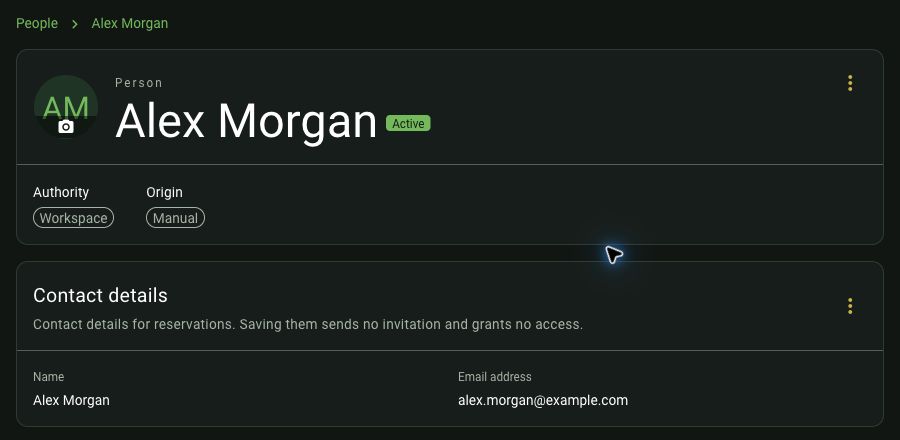
Alex Morgan’s details with a synthetic contact address.
Reuse existing people
The people overview shows a table with a profile image or initials, name, email address and status. Available email addresses are shown in full; a dash appears when no address exists. Inactive people remain visible. Select a row to open the person’s details. With a keyboard, focus the row using Tab and press Enter. Use Add next to the search field to create a person.
Search before creating duplicates. With no search text, the first page appears immediately; use the arrows below the table to browse ten people at a time. Search by name or email to narrow the list. Reservations only offer active people. If names match, check the full email address. Matching email addresses alone do not make two records the same person.
A person linked to reservations or other dependencies cannot simply be deleted. Follow the displayed guidance.
Deactivate and activate people
Open the person’s details and the three-dot menu beside their name. Choose Deactivate, or Activate for an inactive person. You need management permission and the person must be managed by the workspace. People with ongoing or upcoming reservations cannot be deactivated. Completed or cancelled reservations do not block deactivation. If blocked, the person remains active and an explanation appears. After a successful change, the status updates. Inactive people remain visible in the directory but are not offered when creating reservations.
Next: Create a reservation.
Where a person was created
Below the name, Created via shows the source: octopancy or the REST API access name and logo. If a connected system manages the person, an additional note explains that changes are made in that system. The original source remains visible even if management changes later.
Guests, customers and service staff
Use people for guests, customers and contacts. Categories such as guest, cleaning or maintenance support organisation but do not grant control permissions. One person can perform several roles. Reusable cleaning and maintenance teams are separate from workspace users and permission groups. Rights come from assigned reservations or access orders.