

Create your first reservation
A reservation connects a person to one or more units for a defined period. No smart-home connection is required.
Before you start
The person and active units exist, their locations have effective time zones, and you can manage reservations.
Steps
- Open Reservations and start a new reservation.
- In Units, choose the Site and one or more Units.
- In Period, choose a shared start and end in the availability calendar, then enter times in the Site time zone. The calendar considers only the selected Units. All must be available for the entire period, including their individual minimum breaks. The start must not be in the past.
- In Person, select an existing person in the table or create one directly in the assistant. The first ten people appear immediately. Search by name or email, or use the arrows to load more pages. Your selection is retained when changing pages.
- Optionally configure automatic actions and Guest access per Unit under Controls. Choose which controls the person may view, change or execute directly. A default template prefills matching permissions, which you can adjust here. Without a default template, select permissions yourself. Extended time windows are checked for conflicts again.
- Under Review, check the details and enter a clear title, such as AS-2026-025.
- Save. You return to the reservation calendar; a confirmation is sent automatically when an email address is available.
Partially occupied days are marked and remain selectable. A day is selectable only when all selected Units share some free time. Each Unit is then checked against your exact times. Different periods require separate reservations. Use Back to change your entries.
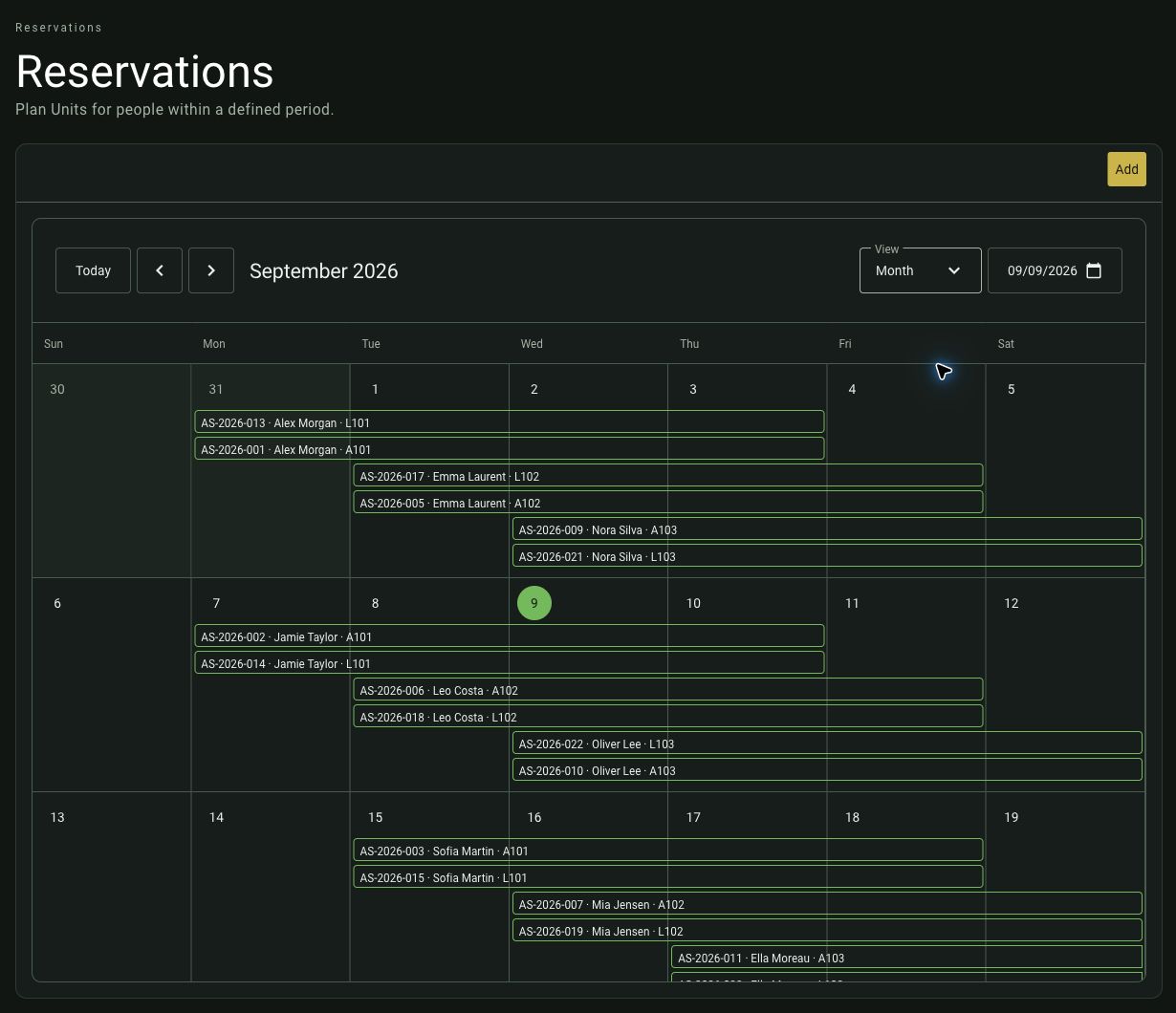
Monthly calendar with Aurora Stays’ synthetic reservations in September 2026.
Two examples
Holiday rentals: Alex Morgan reserves all of Villa Aurora from Friday at 15:00 until Monday at 10:00. Select the unit representing the entire location.
Coworking: Sofia Martin reserves Room A101 at Luna Campus on Tuesday from 09:00 to 12:00. Select only the room unit. For an entire office floor, select its area unit instead.
Why a period may be unavailable
Availability includes more than the visible reservation period. A reservation break or reservation-owned automation can extend the protected interval. Review the conflict and adjust your times.
Daylight-saving changes can create missing or repeated local times. Follow the app's error or explicit choice. The calendar overview currently uses the browser's time zone; unit entry and detailed checks use the displayed location time zone.
Later changes
Open the reservation to edit it. Externally managed reservations may not offer ordinary editing actions. Changing the default reservation break does not update existing reservations retrospectively.
Next: Personal access or check executions.
Orange day indicators mark time restrictions. When dates are selected, the calendar hint card lists affected Units and their blocked times, including buffer time. The selected times are additionally checked for exact availability.
Time selection blocks starts before previous protected occupancy ends and ends after the next protected occupancy begins, including buffer time. Changing dates clears times that are no longer allowed. Calendar hints remain visible while entering times.
Adjust guest access
Open the relevant Unit in the reservation. Under Guest access, select the allowed actions. They default to the reservation period. The minute fields before arrival and after departure appear directly below each action. They stay visible and disabled until you select the action checkbox. Positive values extend access; negative values shorten it.
Select Copy from template and choose a template to prefill compatible settings that you can then edit. The checkbox stays selected and the chosen template remains visible. While the checkbox is selected, individual access actions and minute fields are disabled. Clearing it disables template selection and allows you to edit the copied permissions individually. An individual change clears the selected template name. Choose Save guest access to apply them. Unchecking all actions revokes guest access for that Unit. Other Units retain their settings. Automatic actions remain separately configured. The guest confirms the booking through an access link and a separately requested code. A personal account is optional. See Set up and use guest access.
Default template for new reservations
Open Access templates and choose Use as reservation default from a template's three-dot menu. The template receives a Default badge. You can also select Use as default for new reservations when creating or editing a template and save it. One default applies to the entire workspace.
New reservations copy matching guest permissions for each Unit. Controls that are absent are skipped. Ambiguous matches must be resolved before booking. Prefilled permissions remain editable; existing reservations retain their settings.
Choose Remove default assignment from the menu or clear the checkbox while editing to stop automatic prefilling. Before removing the default template, clear its default selection or choose another template.
Review controls quickly
In Controls, each Unit can be expanded or collapsed. A single Unit starts open; multiple Units start closed. The header summarizes guest permissions. If they fit, choose Next to review the reservation.
Inside the Unit, Guest access and Automatic control are open sections. You can adjust the guest permissions copied from the default template individually for this reservation. The three-dot menu offers Grant no guest access.
Timing fields remain visible but disabled for unchecked permissions. Under Automatic control, only Control heating automatically activates the plan. Expanding or collapsing the Unit does not change settings.
Enter temperatures in the compact field: whole degrees on the left and one decimal digit on the right of the fixed separator. Use Tab to move between the parts. Leaving the field adjusts the value to the allowed range and temperature increments.
In Review, images or placeholders identify the Site and Person. The suggested title combines the selected Units and the Person’s name. Focus the title field to select all text and replace it with your own title.
After saving, you return to the reservation calendar.
Reservation confirmation
After booking, a confirmation is sent automatically to the person's stored email address. It contains the title, units and booked periods with the site time zone. You can still book without an email address; no confirmation is sent in that case.
Under Person → Confirmation and guest access, enable Include guest access in the confirmation to send the confirmation and access link together in one email. It uses the Email for this booking address. Without this option, the confirmation has no guest-access section. The separately requested guest-access verification code still arrives in its own email.
Assign cleaning and maintenance
In the reservation details, choose Plan under Cleaning and maintenance. Select the service kind and review the name.
Under Assignments, Add in the Teams section opens the team picker; Add in the People section opens the person picker. Search by name and select an entry to add it immediately. Teams and direct person assignments can be combined. Already assigned entries and members of selected teams are excluded from the pickers. Adding a team automatically removes existing direct assignments of its members from the draft.
Teams and people appear as compact chips in separate selection fields. Team chips show up to three member avatars and a count for additional members. Empty fields show No teams added yet. or No people added yet. Each field grows when chips wrap onto additional rows. Use its remove action to remove it from the draft. Removing a team makes its members available for direct selection again unless another selected team includes them. Direct assignments of other people remain.
Then set the units, time windows and permissions and save the access order. Assignments take effect only when you save.